Use case

Is everything documented in my model?

Check a trade model against your BIM plan and the owner standard. See what data is missing, on which elements, in construction words.

Runs the sample check in your browser. No account needed.

84%
Mechanical model, version 4Project data · 21 of 25 met
4 to correct
Owner asset data standard1 point
  • 21 duct fittings have no classification codeSection 2.3New
Project BIM plan3 points
  • 18 diffusers and grilles have no levelSection 4.4Still open
  • 12 ducts have no system nameSection 4.2Still open
  • 3 fire dampers have no type markSection 4.6Still open
The model file stayed on this computer.

The situation

The BIM plan asks for data. Nobody has time to open every element.

The BIM plan and the owner standard say what each element must carry: a system name, a level, a classification code, a type mark. A new trade model arrives every week or two.

Checking it by hand, element by element, takes an afternoon. A value nobody checked is found missing later, by someone else.

Who asks this BIM managerGeneral contractor
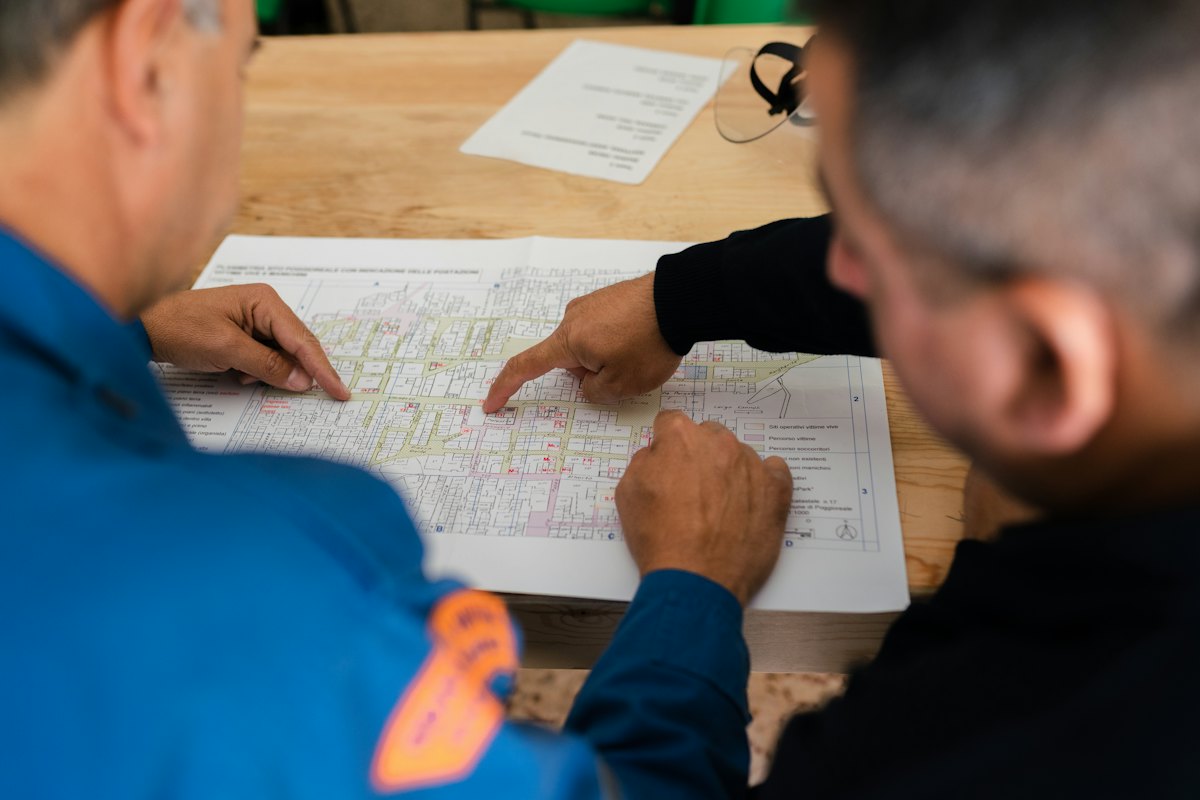
Two people point at a printed floor plan spread on a table

What you do

Three steps, on your own computer

  1. Step 1

    Add your documents

    Add the BIM plan and the owner standard. You approve the requirements they hold, once per project.

  2. Step 2

    Drop the trade model

    Drop the IFC file in the browser, or let the local program pick it up from a watched folder. It is read on your computer.

  3. Step 3

    Read the points to correct

    Each point says how many elements, which value is missing and which document asks for it.

What you see

The result of the check, in construction words

The mechanical model from Northline Mechanical, version 4, checked against the requirements of the project.

Riverside Medical Office Building / Mechanical, version 4Simple view

Mechanical model, version 4

From Northline Mechanical · checked Nov 12, 2026 · 42 requirements
Not decided yet
1
84%

Project requirements

4 to correct21 of 25 met · from the BIM plan, the owner standard and 2 schedules

4 points to correct · largest first

2

21 duct fittings have no classification code

Asked by the owner asset data standard, section 2.3

New
3

18 diffusers and grilles have no level

Asked by the project BIM plan, section 4.4

Still open

12 ducts have no system name

Asked by the project BIM plan, section 4.2

Still open

3 fire dampers have no type mark

Asked by the project BIM plan, section 4.6

Still open
  1. 1One score for your requirements84 %: 21 of 25 met. Code data and handover get their own score, never averaged.
  2. 2Counted on elements, in plain words"21 duct fittings", not a class name. The expert view adds the property and the rule.
  3. 3Every point names who asksThe document and the section, so the trade can look it up.

What you get

What you walk away with

A list the trade can act on

Four points, each with a count, a value and a source, ready to go out as a correction pack.

A record of the check

The date, the requirements used and the result by requirement, saved in your firm's space.

The model file never left your computer

Only the property values the rules need were sent, and they are not stored.

Where the AI helps

It explains a point. It does not find it.

The engine finds and counts the missing data. On request, the AI explains a point in plain words and drafts how to fix it in Revit, from the result the engine computed.

Never decidesNever receives the model
Drafted by AIHow to fix it in Revit · 3 steps
  1. Open the file for Revit to select the 21 duct fittings.
  2. Fill the project's classification parameter with the OmniClass Table 23 number listed in the owner standard, section 2.3.
  3. Export with the project's export settings and send version 5.

From the requirement: owner asset data standard, section 2.3

Check each step before you act. The count and the source come from the check, not from the AI.

Photos: Unsplash · ThisisEngineering

Start the trial and check your own models.

The same check on your own projects. 14 days of Team, no card; then Free unless you choose a plan.